
Diagnosing Fast Battery Drain on Windows Laptops with powercfg /energy
Written with artificial intelligence.
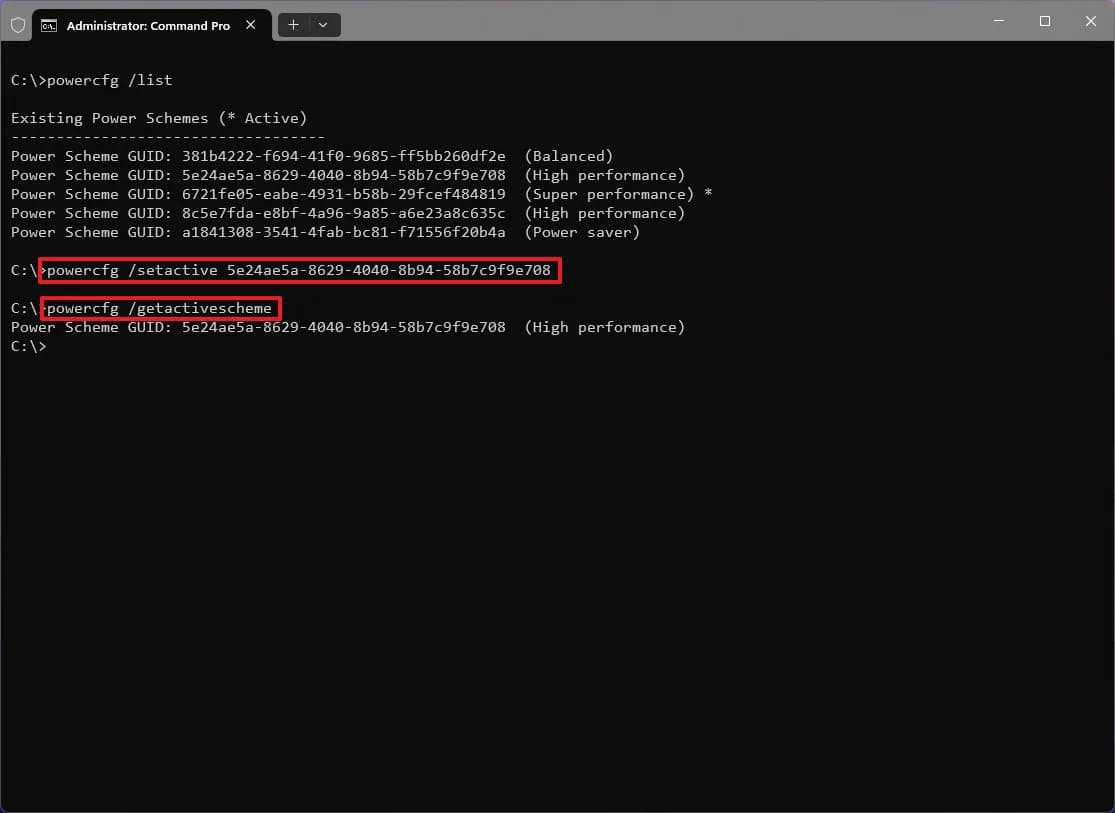
If your Windows laptop's battery drains quickly and Task Manager doesn't reveal the issue, the powercfg /energy tool can help identify the cause. This command runs a diagnostic to analyze system performance and generates an HTML report detailing potential power inefficiencies.
Understanding powercfg /energy
When your Windows laptop's battery depletes faster than expected, and Task Manager does not provide clarity, the command `powercfg /energy` may offer insights. This tool monitors the system for 60 seconds while the laptop is idle and creates an HTML report that highlights errors, warnings, and informational entries related to power management, USB devices, and CPU usage.
Running the powercfg /energy Report
To effectively utilize `powercfg /energy`, follow these steps: 1. Close All Applications: Ensure that no unnecessary apps or documents are open, as this can significantly impact CPU utilization. For instance, closing apps can reduce CPU usage from 45.95% to as low as 3.67%. 2. Open Terminal as Administrator: Execute the command: ``` powercfg /energy /output "$env:USERPROFILE\energy-report.html" ``` Avoid using the laptop during the trace. 3. Review the Summary: After the trace, check the summary for the number of errors and warnings detailed in the report.
Interpreting the Report
The report categorizes its findings into Errors, Warnings, and Information:
- Errors: Not all errors indicate a malfunction. For example, a USB error may relate to a device that should remain active, like an audio interface.
- Warnings: These entries often point to settings that could be adjusted for improved efficiency, such as power plans or sleep settings.
- Information: This section provides insights into CPU usage by specific processes.
Additional Commands and Considerations
If your laptop's battery issues are sporadic, increasing the trace duration can help. For example, using: ```bash powercfg /energy /duration 120 ``` runs the analysis for two minutes.
To further diagnose power management issues, you can use:
- `powercfg /requests` to identify applications or drivers preventing sleep mode.
- `powercfg /batteryreport` to check battery health and usage history.
- `powercfg /sleepstudy` to assess sleep behavior on Modern Standby laptops.
Conclusion
The `powercfg /energy` command is a valuable tool for diagnosing battery drain issues on Windows laptops. It is most effective when your laptop exhibits unusual behavior and can guide you towards resolving power inefficiencies without needing to change settings randomly. Use the findings to identify and prioritize which issues to address for optimal battery performance.